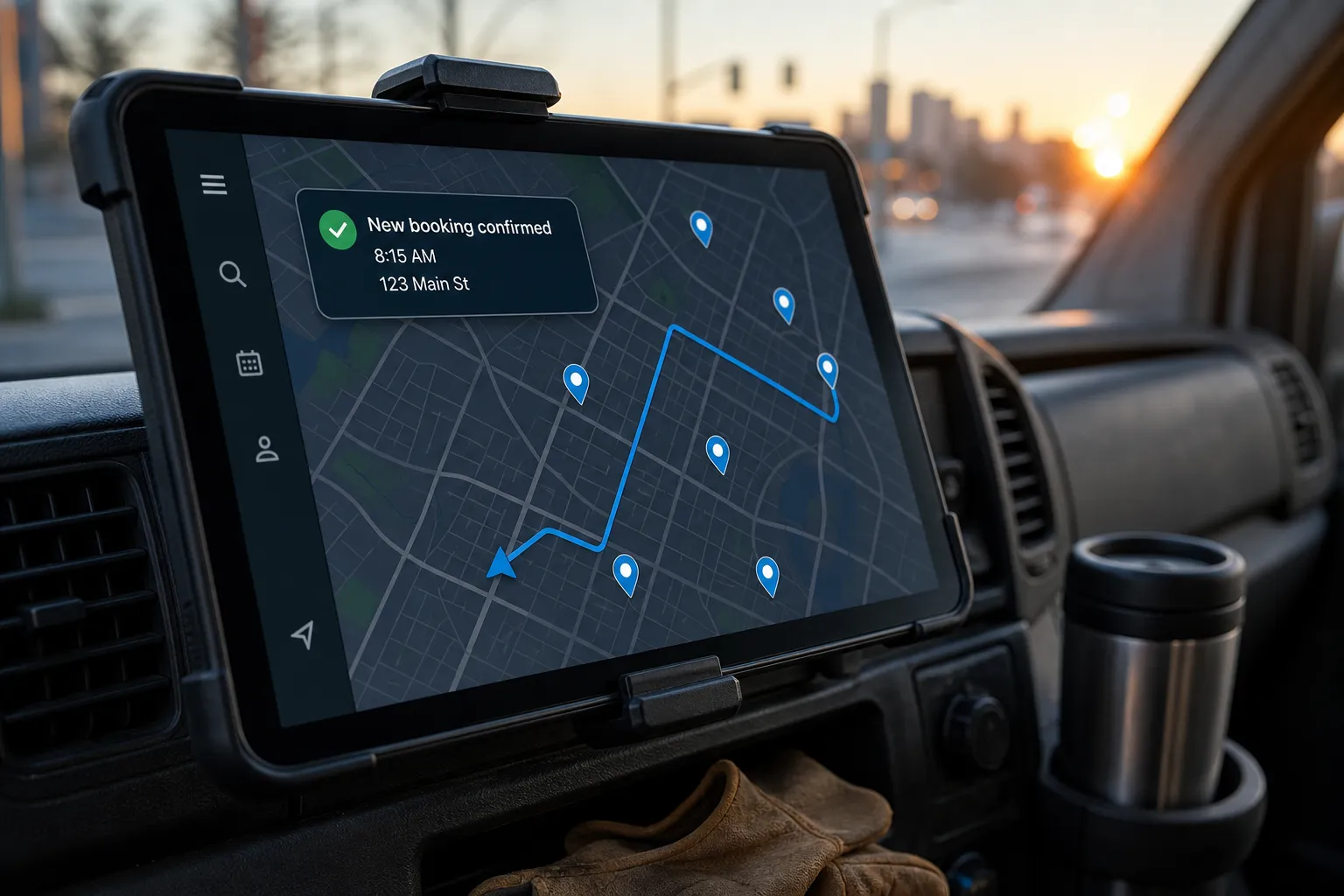
Dispatch problems show up as double-booked installs, 45-minute deadhead drives, and techs sent to jobs they cannot finish. The cure is a simple, enforced system that picks the right person in the right place at the right time, then confirms with the customer. Below is a practical setup for ServiceTitan that you can mirror in Housecall Pro and Jobber.
Build the foundations: skills, zones, capacity
Automation only works when the inputs are unambiguous. Lock down technician skills, service zones, and real availability before you write a single assignment rule.
Define technician skills by job type
- List the job types you actually sell. Example: Water heater install, Toilet repair, Annual HVAC tune-up, Panel upgrade, Drain snaking, Mini-split install.
- For each job type, define minimum solo skill, required certification, and whether a helper is needed. Example: Water heater install = Licensed plumber + gas ticket, requires helper for haul-away.
- Tag technicians only with solo-capable skills. Keep “helper-only” or “apprentice” skills separate to avoid false matches.
Platform notes: In ServiceTitan, align skills to Job Types and Technician Tags under the correct Business Unit. In Housecall Pro and Jobber, attach Job Types and technician tags or notes. Keep a one-page mapping anyone can understand in 30 seconds.
Draw zones that match real travel
- Split your territory into 4 - 8 zones by average drive time, not postal code borders. Use plain labels: North, Midtown, East, West, etc.
- Assign each tech a primary zone and limited overflow zones. Do not make everyone cover everything.
- Record peak-traffic windows per zone. Example: Avoid cross-city bookings 7:30 - 9:30 a.m. and 3:30 - 6:00 p.m.
Platform notes: In ServiceTitan, create Service Areas and associate them with campaigns and job types; attach a zone tag to customers and jobs. In Housecall Pro and Jobber, use client/job custom fields or tags like Zone: East to filter the schedule view.
Set real availability and capacity
- Define shift windows, travel buffers, and breaks for each tech. Example: A 90-minute job plus a 30-minute buffer should occupy a 2-hour slot. Bake buffers into the scheduled duration if the platform has no native buffer setting.
- Cap daily installs or multi-hour jobs per crew. Example: Max 2 water heater installs per day per qualified crew.
- Separate on-call coverage for urgent jobs from routine work. Put on-call schedules on their own calendar.
Platform notes: In ServiceTitan, use Capacity Planning at the Business Unit or Job Type level to reflect daily caps. In Housecall Pro and Jobber, standardize default durations and use team calendars to enforce practical limits.
Dispatch rules, exceptions, and capacity logic
With skills, zones, and capacity set, write rules that place jobs correctly on the first try. Keep the logic short enough to review in a daily dispatch huddle.
Core assignment rules
- Match only to techs who have the exact skill tag for the job type. No loose matches.
- Prefer techs whose primary zone equals the job’s zone; allow overflow zones only when primary-zone capacity is full.
- Break ties by nearest current location or home base, then by lowest added travel time for the day’s route.
- Respect daily capacity caps for installs and multi-hour jobs. Never exceed caps for routine work.
Platform notes: In ServiceTitan, drive this with Job Type, Business Unit, Service Areas, and Technician Tags on the Dispatch Board. In Housecall Pro and Jobber, combine Job Types, technician tags, and zone tags to filter the calendar and guide auto-assignment.
Exceptions and overrides
- Emergencies: If keywords like no heat, active leak, sparking panel, or CO alarm appear, route to the on-call emergency queue. Only techs with an emergency tag qualify.
- High-value customers: VIP and warranty jobs can skip normal caps and route to designated techs.
- New technicians: Restrict to helper roles or limited job types for 30 days; no emergency calls.
Document each exception in one page with an expiry date. Unchecked exceptions are how dispatch logic gets fuzzy.
Booking confirmation, rescheduling, and waitlist automation
Once the system finds a valid tech, confirm before you hard-book. This protects the route and sets expectations early.
Hold, confirm, and notify
- Hold: Place a soft hold on the slot for 20 - 30 minutes.
- Confirm: Send SMS and email with date, arrival window, and one-tap Confirm or Request a different time.
- Notify: If no reply in 15 minutes, resend once. If still no reply, release the hold and try the next best slot.
After confirmation, schedule reminders at 7 days, 48 hours, 24 hours, and 2 hours with one-tap confirm or reschedule. If a customer cancels, reopen the slot to the waitlist immediately.
Rescheduling and the live waitlist
- When a customer taps reschedule, offer the next three valid slots that match skill and zone. Do not show options outside their zone unless nothing exists within 48 hours.
- If the customer cancels, push the job into a zone-based waitlist and alert opted-in customers who prefer earlier times in that zone.
- Soft-cap broadcasts to keep quality high. Start with 5 notifications; raise if fill rates lag.
- Auto-expire waitlist entries after 14 days unless the customer reconfirms interest.
Automation playbook with n8n or Make
- Trigger: New lead from web form, chat, phone transcript, or email. Validate address, service need, and urgency as separate fields.
- Enrich: Geocode the address and assign a zone. Optional: check drive time from likely technicians using a distance matrix API.
- Select tech: Filter by skill tag, primary zone, and available capacity. Break ties by nearest current location or base.
- Soft hold: Create a tentative event on the tech calendar with a 20 - 30 minute expiry.
- Confirm: Send SMS and email with one-tap links. On confirm, convert tentative to booked and write back the confirmation timestamp.
- Escalate: On no response, attempt the next best slot or drop the job to a manual review queue.
- Waitlist: On cancellation, broadcast to matching waitlist contacts in that zone until filled, then close the slot.
If you want this handled end to end, an AI customer service workflow can manage confirmations and reschedules across SMS, email, and phone. Our Dispatch Coordination Automation checks technician availability in ServiceTitan, Housecall Pro, or Jobber, assigns by skill and location, and closes the loop with the customer.
Source of truth hygiene
- Every confirmation should write back to the job record with timestamp and channel.
- Any change must update the technician’s calendar and the customer message thread.
- If the job came from your website, collect address, service need, and urgency as separate required fields. If your forms are messy, a shop like RedStudio can rebuild them so your dispatch rules get clean inputs.
Weekly KPIs and ops rituals
Measure, adjust, repeat. Review these numbers weekly in a 20-minute dispatch meeting and tune the inputs, not just the outcomes.
First-contact booking rate
- Definition: Percent of inbound jobs booked and confirmed on the first call or message.
- Target: 75 - 85% for routine work when skills and zones are clear.
- If low: Add missing skills, tighten zones, and enforce capacity caps. Check whether required form fields are being skipped.
Average travel per job
- Definition: Total drive minutes divided by completed jobs.
- Target: Under 25 minutes in dense areas; under 40 in spread-out markets.
- If high: Shrink zones, block cross-town bookings during peak windows, and reorder routes after lunch when traffic shifts.
Same-day fill and no-shows
- Same-day fill: Percent of cancelled slots you refill the same day. Target 50%+ with a healthy waitlist.
- No-shows: If this climbs, clarify reminder messages and shorten arrival windows.
Rollout checklist and common pitfalls
- Exact skills only: Tag creep kills accuracy. Audit tags monthly.
- Zone drift: Traffic changes. Review zones quarterly with drive-time data.
- Clear emergency path: Keep a separate on-call queue and schedule.
- Data quality: Free-text notes and sloppy addresses produce bad routes. Use required fields and input validation.
- Audit trail: Log every auto-assignment, confirmation, and change with timestamps.
Key takeaways
- Set skills, zones, and capacity before you automate dispatch.
- Use strict match rules with documented exceptions and hard caps.
- Confirm with a hold-confirm-notify flow; reopen cancellations to a live waitlist.
- Run weekly on first-contact booking, travel time, same-day fill, and no-shows.
- Keep data clean and the rules simple so anyone on the team can audit them.
If you need hands-on help, an AI customer service agency can implement this with your existing systems. Our team works across ServiceTitan, Housecall Pro, Jobber, and Google Calendar, and we support North American service businesses including Toronto and Ontario. We also deploy AI customer service agents that resolve 60 - 80% of support across chat, email, and phone, plus booking, lead follow-up, and back-office automations in n8n and Make so your staff handle only the calls that truly need a human.
FAQ
What data do I need before automating dispatch?
You need a clean list of job types, skill tags for each technician, defined service zones, real shift hours, and standard job durations that include travel.
Can I auto-assign the nearest tech by travel time?
Yes, if your setup tracks location and skills. A practical approach is to match by zone first, then choose the nearest qualified tech based on current route or base location.
How do I handle emergency jobs without breaking the schedule?
Create a separate emergency queue with on-call techs who have the right skills. Use keywords to flag emergencies and bypass normal capacity limits for that queue.
How do I sync technician calendars if they use Google Calendar?
Keep one source of truth. If you connect to Google Calendar, make sure confirmations and changes write back to the job record and the technician’s calendar in real time.
How should I roll this out to the team?
Pilot with one zone and two job types for two weeks, document the rules, and review KPIs weekly. Then expand to more zones and jobs once routes improve.