Professionals spend 28% of each workday reading and responding to email, according to McKinsey’s 2024 Workplace Productivity report. That’s 2.2 hours of an 8-hour day, or 11 hours per day for a five-person team. Most of those emails don’t need a thoughtful custom reply. They need sorting, a template, a redirect, or a polite auto-response. The trick is separating the 70% of email that machines can handle from the 30% that genuinely needs you, without anything slipping through the cracks.
This guide walks through a three-layer automation system you can build in a weekend using Gmail, Calendly, and an optional workflow tool like n8n or Make.
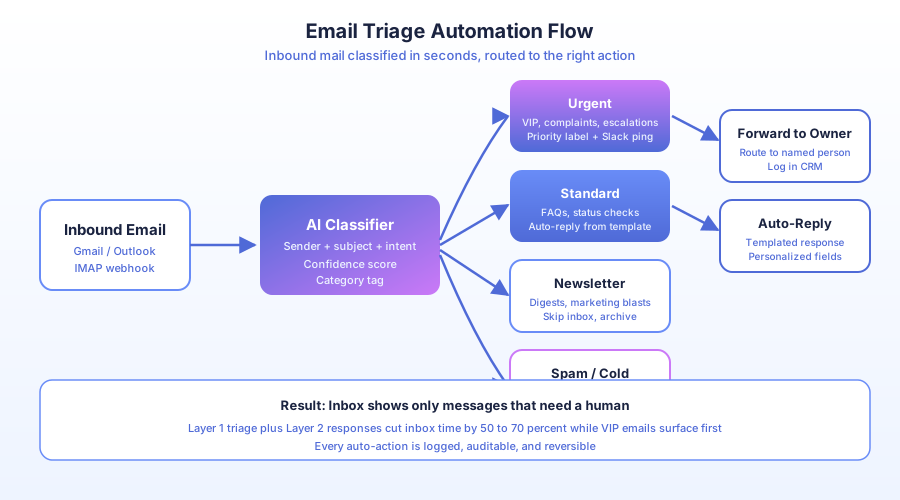
What are the three layers of email automation?
Email automation works in three stacked layers: triage sorts and tags incoming mail, auto-response handles repeat patterns with templates, and follow-up chases unanswered outbound threads. Each layer addresses a different type of inbox work. Together, they cut email time 50-70% while keeping VIPs visible.
IDC’s 2023 Future of Work study found employees spend 30% of their time on manual data tasks, and email is the largest single category inside that number. Not because individual messages take long, but because the volume is relentless. A layered approach matches the right tool to each type of work, so you avoid the blunt “auto-reply to everything” trap.
| Layer | What It Does | Time Saved | Risk Level |
|---|---|---|---|
| 1. Triage | Sorts, tags, routes incoming mail | 30-40% | Very low (rules-based) |
| 2. Auto-response | Replies to known patterns with templates | 20-30% | Low (patterns you define) |
| 3. Follow-up | Chases unanswered outbound emails | 10-15% | Zero (reminders only) |
Layer 1 runs on every email. Layer 2 only triggers on messages that match explicit rules you’ve built. Layer 3 only runs on emails you sent. Nothing gets auto-replied unless you’ve tested the pattern by hand first.
How do you set up Layer 1, automatic email triage?
Layer 1 categorizes every incoming email by sender, subject, keywords, and rules you define. Client emails land in one label, leads in another, newsletters skip the inbox entirely, and notifications get routed to a background folder. Your inbox shrinks to only what actually needs your attention.
Gartner’s 2023 Data Quality report calculates poor data quality costs organizations $12.9 million per year on average. Email is a big contributor because information arrives in messages but rarely makes it into the CRM. Automated triage fixes this by routing emails to the right system as they arrive.
Gmail setup (free, 15 minutes):
- Open Settings, Filters and Blocked Addresses, then Create New Filter.
- Set conditions: sender domain, subject keywords, or body content.
- Apply actions: Skip Inbox, Apply Label, Forward, Mark as Read, Star.
- Test with “Apply to existing conversations” to validate before trusting it live.
Practical filter categories:
| Category | Filter Criteria | Action |
|---|---|---|
| Client emails | From: @clientdomain.com | Label Clients, Star, keep inbox |
| Lead inquiries | From: website form, Subject: “contact” | Label Leads, forward to sales |
| Invoices | Subject: “invoice” OR “receipt” | Label Finance, forward to bookkeeper |
| Newsletters | From: known senders | Skip inbox, label Read Later |
| Tool notifications | From: Slack, Asana, GitHub | Skip inbox, label Notifications |
| Cold outreach | ”Unsubscribe” + unknown sender | Archive or delete |
For AI-powered classification, connect Gmail to n8n or Make, which can read each incoming email, tag it with Anthropic Claude or OpenAI, and push the result to your CRM, project tracker, or a Slack channel. Self-hosted n8n is free forever; Make starts at $9/month.
At Thompson Career College, email triage was the first automation layer we built. Incoming inquiries from 300+ prospects per month now sort by program interest automatically, feed directly into a speed-to-lead system, and trigger sub-60-second responses. Admissions calls tripled within 90 days.
How do you set up Layer 2, auto-responses for common email types?
Layer 2 identifies emails that match a known pattern and sends a pre-written response within seconds. This handles the “same question, different person” category: scheduling requests, status checks, document requests, and FAQ answers. The rule: only auto-respond to patterns you’ve explicitly defined and tested by hand first.
According to a Harvard Business Review study by Oldroyd (2011), updated by Drift’s 2023 conversational benchmarks, responding within five minutes makes you 100x more likely to reach a qualified lead. Auto-responses meet that window for known categories while you focus on replies that need thinking.
What’s safe to auto-respond to:
| Email Pattern | Auto-Response | Tool |
|---|---|---|
| ”Do you offer X?” | Service description + booking link | Gmail template |
| ”What are your hours/pricing?” | Standard info + CTA | Gmail canned response |
| ”Can we schedule a call?” | Calendly link with intro | Calendly + Gmail |
| ”Any update on my project?” | Live status pulled from CRM | n8n + CRM API |
| ”Please send the contract” | Auto-attach from Drive | Google Apps Script |
The status check auto-response is the highest-ROI pattern. Instead of a human looking up a project, writing an update, and replying, the system queries your CRM, pulls the current milestone, and generates a response automatically. Skylarks International cut 80% of “any update on my file?” calls and emails this way. The system checks each immigration case in the database and replies with specific progress details. Staff now handle only complex case issues.
Safeguards to build in:
- Require a 95%+ confidence match before any auto-reply fires
- Add a “Did this answer your question? Reply if you need more help” footer
- Log every auto-response in your CRM so team members have context
- Never auto-respond to complaints, cancellations, or escalations
- Keep a weekly audit of auto-replies to catch misclassifications early
Gartner’s 2024 Customer Service and Support forecast predicts 75% of customer service interactions will involve generative AI by 2027. Build the safeguards now so the growth curve is safe, not messy.
How do you set up Layer 3, automated follow-up on unanswered emails?
Layer 3 tracks your outbound emails and sends follow-up reminders when recipients don’t reply within a defined window. You write the sequence once. The system sends it on schedule. No more “I forgot to follow up” or “that one slipped through the cracks.”
Forrester’s 2024 Total Economic Impact studies measured average ROI on business process automation at 200% in the first year. Follow-up automation has one of the fastest payback periods because every recovered response is a lead that would have gone cold, an invoice that would have gone unpaid, or a quote that would have been forgotten.
Follow-up automation tools:
| Tool | Type | Cost | Best For |
|---|---|---|---|
| Boomerang for Gmail | Gmail add-on | $5-$15/month | Individual reminders |
| Mixmax | Gmail + sequences | $29/month | Sales outreach cadences |
| HubSpot | CRM suite | Free-$150/month | CRM-integrated follow-up |
| ActiveCampaign | Email platform | $15/month | Multi-step nurture flows |
| n8n + Gmail API | Custom workflow | Free (self-hosted) | Conditional logic |
A typical four-touch follow-up sequence:
- Day 0: original email sent
- Day 3: gentle bump (“wanted to make sure this didn’t get buried”)
- Day 7: value-add follow-up (attach a case study or resource)
- Day 14: final check-in (“I’ll close the loop unless timing’s off”)
- Day 15: mark as cold in CRM, remove from sequence
Statistics Canada’s 2024 Survey of Employment, Payrolls and Hours pegs a Canadian full-time employee cost at $45,000-$65,000 per year. A salesperson spending three hours per week on manual follow-ups is burning roughly $4,700-$6,500 per year on that task alone. An automated sequence costs $15-$29 per month. The payback is measured in days, not months.
What should you never automate in email?
Four categories must stay human: first-time communication with high-value prospects, customer complaints, contract negotiations, and sensitive HR or legal threads. Automation handles volume. Humans handle judgment. The cost of a bad auto-reply to a complaint is higher than the savings from the automation.
McKinsey’s 2024 Global Survey on AI and Automation found 60% of occupations have at least 30% of tasks that could be automated. For email, that 30% is the pattern-matching work. The remaining 70% needs context, empathy, or strategic thinking that AI still fumbles on the edges.
Never auto-respond to:
- Client complaints, refund requests, or negative feedback
- Contract negotiations or pricing discussions
- Sensitive HR, legal, or compliance communications
- First-time emails from high-value prospects (acknowledgement only is okay)
- Messages expressing frustration, urgency, or emotion
The safest rule: if you’ve sent the same reply 20+ times to the same pattern, it’s ready to automate. If each reply needs different wording, keep it human. Start conservative, then expand.
How do you measure the impact of email automation?
Track three metrics for 30 days before and after each layer launches: total inbox time per day, response time for priority emails, and percentage of emails auto-handled. The goal isn’t zero inbox time; it’s protecting attention for email that needs judgment.
Process Street’s 2024 Automation Benchmark found companies that document processes before automating achieve ROI 2.3x faster. For email, “documentation” means categorizing the last 50 messages in your inbox and counting how many fall into repeatable buckets.
| Metric | Before | After (Target) | How to Measure |
|---|---|---|---|
| Daily inbox time | 2+ hours | Under 45 min | Toggl, RescueTime |
| Priority response time | 2-4 hours | Under 30 min | Gmail analytics |
| Auto-handled % | 0% | 40-60% | Count auto-labeled + replied |
| Missed important emails | Baseline | Same or fewer | Weekly audit |
Launch Layer 1 first. Run it for a week. Spot-check auto-archived emails to make sure nothing important got mislabeled. Then add Layer 2 for your highest-volume repeat question. Finally, layer in follow-up automation for outbound sales or client threads. Ship one layer at a time so you can isolate anything that breaks.
Which common mistakes break email automation?
Most email automation projects fail for predictable reasons. The biggest: automating before categorizing. Teams build filters without first counting what actually hits the inbox, so the rules miss 40% of real traffic. The second: auto-replying to categories that aren’t stable yet, which generates awkward responses to edge cases and erodes trust.
A 2024 Zapier State of Business Automation report found 64% of small businesses had abandoned at least one automation within six months of launch, usually because of insufficient testing. Build a test week into every layer. Run filters in “tag only” mode (no archive, no forward) for seven days and audit the output before you let the system take action.
The five most common mistakes:
- Auto-replying without a confidence threshold, so edge cases get wrong answers
- Skipping the weekly audit, so misclassifications pile up unseen
- Forgetting to exclude VIP senders from newsletter sweeps
- Routing without a fallback, so unclassified emails vanish into a rarely-checked label
- Building everything at once instead of launching Layer 1, Layer 2, and Layer 3 sequentially
Fix these five and you’ll avoid 80% of the failure modes that kill email automation projects.
How do you get started in 30 minutes?
Open your inbox and categorize the last 50 emails by pattern: scheduling, status check, FAQ, vendor, internal, cold outreach, newsletter, VIP. Count each bucket. If more than half fall into repeatable patterns, automation will save significant time. If fewer, start with triage alone.
Your first hour: set up five Gmail filters for newsletters, notifications, vendor receipts, tool alerts, and known cold-outreach patterns. Your second hour: write three Gmail templates for your most-repeated questions and connect Calendly for scheduling. Your third hour: pick one outbound email type (quotes, demos, proposals) and build a three-touch follow-up sequence in Boomerang or HubSpot Free. You’ll recover 3-5 hours per week from that alone.
For multi-step outbound sequences, see our deeper guide on how to automate follow-up sequences. For workflow orchestration beyond Gmail, the Make.com review covers connecting Gmail to your CRM, Slack, and project tools.
If your email volume has outgrown manual management and you want a system that routes, responds, and follows up automatically, book a free audit. We’ll map your communication workflows and show you exactly where the hours are disappearing, with a written report delivered in 48 hours.