Fifty times a day at most small businesses, the same thing happens. A lead emails in. Someone copies the name into the CRM. Opens the calendar. Finds a slot. Types a reply. Hopes the prospect responds before someone else books it. According to IDC’s 2023 Future of Work study, employees spend 30% of their work time on manual data entry and transfer between disconnected tools. That’s your team acting as the integration layer between CRM, calendar, and email. This guide shows you how to replace that manual bridging with one connected workflow, using the tools you already have, in about 45 minutes.
Why does disconnected tooling cost you so much?
Disconnected CRM, calendar, and email cost you leads, response time, and visibility. Data sits in silos, response windows close, and follow-ups fall through. According to IDC’s 2023 Future of Work study, 30% of employee time goes to manual data transfer. That’s the hidden cost of keeping three tools running in parallel without a shared data layer.
Three specific problems show up when these systems run independently.
Data lives in silos. Contact details in Gmail don’t update the CRM. Meetings don’t log against contact records. Email threads vanish when someone searches the CRM for interaction history.
Response time collapses. According to a Harvard Business Review study by Oldroyd (2011, updated by Drift in 2023), responding within 5 minutes makes you 100x more likely to connect with a lead. Sub-5-minute response is impossible when replying requires opening three apps and retyping the same data in each.
Things fall through cracks. No-shows don’t trigger follow-ups. Cancellations don’t update the pipeline. Completed calls don’t advance deals. The tools are fine. The gaps between them are the problem.
What does a connected workflow actually look like?
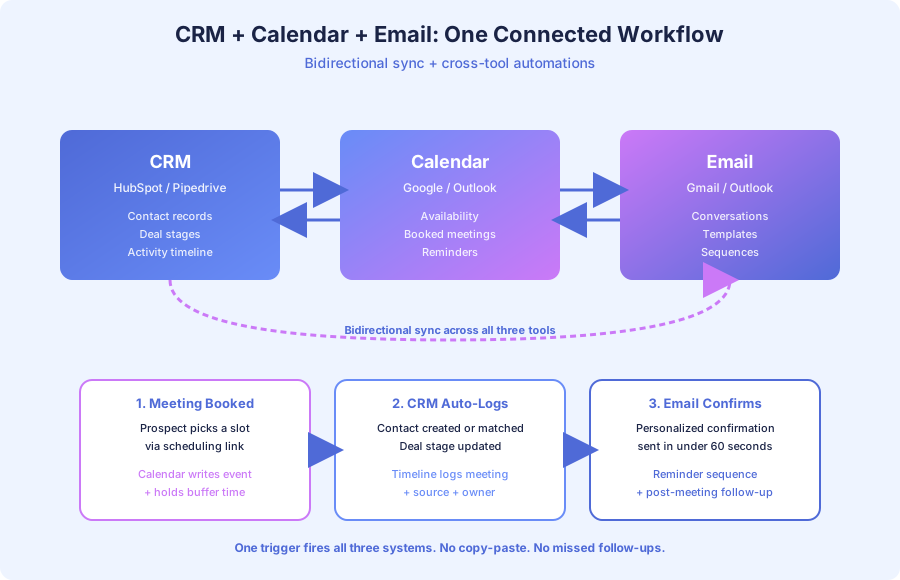
A connected workflow turns one form submission into a chain of automatic actions across all three tools. The CRM creates a record, the calendar offers times, and email sends a personalized reply, all in under 60 seconds. No manual copy-paste. No forgotten logging. Every touchpoint is tracked and every response is fast.
Here’s what happens when a prospect fills out your contact form in a connected system:
- CRM creates a new contact record with all form data
- Lead scoring assigns priority based on form responses
- If qualified, a personalized email sends within 60 seconds
- That email includes a HubSpot Meetings or Calendly booking link
- When the prospect books, the calendar event logs to their CRM record
- The assigned team member gets a notification with full contact history
- After the meeting, a follow-up email sequence triggers automatically
- Deal stage updates based on meeting outcome
Thompson Career College in London, Ontario built exactly this pipeline. They were getting 300+ inquiries monthly, with 40% arriving after hours. Response times averaged 1-2 business days, and prospective students were applying to Fanshawe and Conestoga before TCC could reply. After connecting their CRM, calendar, and email, admissions calls tripled and 80% of student queries now auto-resolve.
How do I choose the right CRM for this setup?
Pick the CRM as your hub first, then layer the calendar and email around it. For most businesses under 20 people, HubSpot Free CRM is the right starting point because Gmail, Google Calendar, Outlook, and the meeting scheduler all connect natively at no cost. Salesforce fits larger orgs and Pipedrive suits pure sales teams.
Here’s how the major options compare:
| Feature | HubSpot Free/Starter | Salesforce Essentials | Pipedrive | Zoho CRM |
|---|---|---|---|---|
| Best for | Most small businesses | Complex sales orgs (20+) | Sales-focused teams | Budget-conscious teams |
| Native Gmail sync | Yes | Yes | Yes | Yes |
| Native calendar sync | Google, Outlook | Google, Outlook | Google, Outlook | Google, Outlook |
| Meeting scheduler | Built-in, free | Requires add-on | Requires add-on | Built-in |
| Workflow automation | Starter ($20/mo) | All plans | Advanced ($49/mo) | Professional ($23/mo) |
| Setup time | 1-2 days | 1-2 weeks | 1-2 days | 2-3 days |
According to Deloitte’s 2023 Global Automation Survey, 73% of organizations report positive ROI within 12 months of automating core processes. CRM integration is typically the highest-impact starting point because it touches sales, marketing, and service at once. Start with the free tier, prove the workflow works, then upgrade when you hit a real limit. See our best CRM platforms for small businesses in 2026 guide for deeper comparisons.
How do I connect Google Calendar to my CRM step by step?
The fastest path is HubSpot + Google Calendar + Gmail, which takes about 45 minutes end to end. HubSpot’s native integrations cover both platforms with no middleware, and the meeting scheduler is free. Once the three tools are connected, every email logs automatically, every meeting syncs both ways, and every booking creates a CRM record.
Step 1: Connect Google Calendar to HubSpot
Inside HubSpot, go to Settings, then Integrations, then Calendar. Click Connect Google Calendar and authorize access. HubSpot will now sync events both ways. When you have a meeting with a CRM contact, it shows up on their timeline automatically, and when you create a meeting inside HubSpot, it writes to your Google Calendar.
Step 2: Set up HubSpot Meeting Links
Under Sales, then Meetings, create a meeting link. Choose your availability window, buffer time, and duration options (15, 30, 60 minutes). This link replaces Calendly for most teams. When a prospect books through the link, HubSpot creates the contact if new, writes the event to both calendars, and sends a confirmation email, all in one flow. Calendly still works too if you prefer it. We compare both tools in our Calendly vs Acuity vs HubSpot Meetings guide.
Step 3: Connect Gmail
Under Settings, then Integrations, then Email, connect your Gmail account. Every email you send or receive from a CRM contact now logs to their record automatically. No BCC trick, no forwarding rule, no manual attach. Outlook users follow the same flow with the Microsoft 365 option.
Step 4: Build the first workflow trigger
This is where automation starts. Inside HubSpot Workflows (Starter plan or above), create a trigger: when a contact is created and lead score is above a threshold, send a personalized email with your meeting link. According to Celonis’s 2024 Process Intelligence report, the median time-to-value for business process automation is six weeks, but this specific workflow can go live in under an hour.
What if I use Salesforce, Pipedrive, or another CRM?
The architecture stays the same regardless of which CRM you choose. The CRM is the source of truth, calendar and email feed into it, and automation triggers fire from it. Only the implementation details change. Most major CRMs ship with native Gmail, Outlook, and calendar integrations, so you rarely need a third-party connector for the basics.
Salesforce + Google Workspace. Use Salesforce’s native Gmail Integration and Google Calendar Sync from AppExchange. Both are free. For meeting scheduling, pair with Calendly (native Salesforce integration) or buy Salesforce Scheduler as an add-on. Build workflows with Salesforce Flows.
Pipedrive + Google Workspace. Pipedrive’s native Gmail and Google Calendar sync is included on every paid plan. The Scheduler feature handles bookings. For custom logic like auto-creating deals from form submissions, bridge with Make or Zapier.
Any CRM + any calendar + any email. When native integrations don’t cover your use case, workflow connectors fill the gaps. Make (formerly Integromat) and n8n offer the most flexibility for complex branching. Zapier is the simplest for one-to-one connections. The principle holds: your CRM is the single source of truth, and automations flow through it.
What does the workflow look like in practice?
Thompson Career College’s connected workflow is a clear example of what’s possible when CRM, calendar, and email run as one system. A prospect visits the website, fills out the inquiry form, and within 60 seconds receives a personalized email with a booking link for a campus tour or phone consultation, scheduled to the right counselor automatically.
When the prospect fills out the form, the system:
- Creates a contact in the CRM with program interest, location, and timeline
- Sends a personalized response acknowledging their specific program
- Includes a booking link for a guided campus tour or phone consultation
- Starts a multi-touch follow-up sequence if they don’t book immediately
When the prospect books a consultation:
- The calendar event syncs to the admissions counselor’s schedule
- The counselor gets a notification with the prospect’s full inquiry history
- Reminders send to the prospect at 24 hours and 1 hour before
- After the meeting, the next pipeline stage triggers automatically
The numbers: 300+ monthly inquiries processed automatically, sub-60-second response, 3x increase in admissions calls, and 80% of student queries auto-resolved. According to McKinsey’s 2024 workforce analysis, 60% of occupations have 30% or more automatable tasks. TCC’s admissions process was closer to 70% automatable because so much of it was repetitive communication that the connected workflow now handles on its own.
Which tool combinations work best for each business type?
After building these systems for professional services, real estate, education, SaaS, and agencies, clear patterns emerge. The combinations below reflect what teams actually stick with after 12 months of use, not what looks best on a feature comparison sheet. Match your business type to the closest row and you’ll skip most of the trial-and-error.
| Business Type | CRM | Calendar | Connector | Meeting Tool | |
|---|---|---|---|---|---|
| Professional services | HubSpot or Clio | Google Calendar | Gmail | Make or Zapier | Calendly |
| SaaS / tech | HubSpot or Salesforce | Google Calendar | Gmail | n8n or Make | HubSpot Meetings |
| Real estate | Pipedrive or Follow Up Boss | Google Calendar | Gmail | Zapier | Calendly |
| Education | HubSpot | Outlook | Outlook | Make | HubSpot Meetings |
| Agencies | HubSpot or Pipedrive | Google Calendar | Gmail | Make | Calendly |
KwikUI, a SaaS platform with 3,000+ users, runs HubSpot connected to their product database. When a trial user hits specific usage milestones, the CRM triggers personalized outreach from the sales team, complete with calendar booking links. Trial-to-paid conversion doubled from 4% to 8%, and churn dropped 40%. The combination matters less than the consistency of keeping the CRM as the hub for all three tools.
How do I measure if the integration is working?
Three metrics tell you whether the connected workflow is delivering value. Track them weekly for the first month after launch, then monthly after that. If response time drops, CRM completeness climbs, and pipeline velocity accelerates, the integration is working. If one number stalls, something in the chain is broken and needs review.
Response time. Measure the gap between form submission and first reply. Before integration, most teams see 2-24 hours. After, you should see under 5 minutes. According to the HBR study by Oldroyd updated by Drift in 2023, the 5-minute threshold is where conversion rates jump dramatically, by up to 100x versus waiting an hour.
CRM data completeness. Check the percentage of contacts with logged emails, calendar events, and deal stages. Disconnected systems typically show 40-60% completeness. Connected systems hit 90%+, and the remaining 10% is usually stale contacts that never had a real interaction.
Pipeline velocity. Track how long a lead takes to move from first contact to closed deal. Connected workflows compress this timeline because nothing stalls waiting for manual data entry — for the spreadsheet side of that bridging (form submissions, signups, exports), our Google Sheets ↔ CRM data entry guide compares native integrations, Zapier/Make, and custom n8n flows on field mapping and dedup behavior. According to Forrester’s 2024 Total Economic Impact studies, business process automation averages 200% ROI in the first year.
What are the most common setup mistakes to avoid?
Four mistakes trip up most teams when they first connect these tools. Knowing them ahead of time saves a week of rework. The root cause is usually skipping the data cleanup step before connecting, or treating the CRM as a passive log rather than the active hub. Fix these before launch and your rollout stays on track.
Skipping contact deduplication. Before connecting anything, export contacts from all three systems and dedupe in a spreadsheet. Contacts duplicated across tools create conflicting records and broken timelines. Dedupe by email as the primary key.
Letting calendar sync run without filters. Full calendar sync pushes every personal appointment into the CRM. Configure sync rules so only work meetings with contacts log to records. HubSpot and Salesforce both let you whitelist specific calendar types.
Forgetting to assign contact owners. When the CRM auto-creates contacts from form fills, they land unassigned. Build an assignment rule on day one, either round-robin or territory-based, or leads sit in limbo while your team waits for someone to claim them.
Over-engineering the first workflow. Start with one trigger: form fill creates contact and sends meeting link. Prove that works. Then layer on lead scoring, routing, and post-meeting sequences. According to Deloitte’s 2023 Global Automation Survey, 73% of automation projects succeed when scoped tight at launch.
What’s the fastest way to start today?
The fastest path is a 45-minute HubSpot Free setup: create the account, connect Gmail, connect Google Calendar, create a meeting link, and put the link in your email signature. That alone fixes the worst of the manual bridging. You can add workflow automation next week, lead scoring the week after, and post-meeting sequences in month two.
Don’t wait for the perfect tool stack. Every day your CRM, calendar, and email run as separate systems, you’re losing leads to faster competitors and burning your team’s time on copy-paste work they shouldn’t be doing. According to IDC’s 2023 Future of Work study, that adds up to 30% of every workday.
Not sure which CRM fits your business? Our guide to the best CRM platforms for small businesses in 2026 walks through HubSpot, Salesforce, Pipedrive, and Zoho in depth. Want to compare the scheduling tools that plug into these workflows? Read our Calendly vs Acuity vs HubSpot Meetings guide.
Ready to build a connected CRM-calendar-email workflow for your team? Our sales automation solutions page shows how we build these pipelines for businesses like yours, or contact us to scope a custom setup. The manual bridges between your tools aren’t just inefficient. They’re costing you leads, deals, and hours every single day.